
Introduction:
OST stands for Offline Storage Table. This file stores a synchronized copy of sensitive email messages, crucial contacts, and other mailbox items. It is essential for maintaining productivity without an internet connection. Microsoft Outlook 365 users prominently rely on it (.ost file) for mailbox data access while working offline. But these files (.ost) are powered with multiple security layers. Firstly, the .ost files are heavily encrypted. Secondly, these files are linked to a specific Outlook profile. Thirdly, these are tied to a particular server. In case, the server crashes, then the user experiences sync issues. This scenario may require users to access OST outside the original environment. This is where the need to convert OST file to PST arises. Such conversion ensures better accessibility and portability of the user’s email data.
In this guide titled “How to convert OST file to PST in Outlook 365,” we will walk you through the most effective methods for such conversion. We will explore a built-in techniques for active accounts. We will also highlight common challenges. Additionally, we will also unearth a professional recovery solution for corrupted or orphaned files.
Understanding the Error:
This section of the post will shed light on possible reasons of the issue. Some of them are listed below:
–When the Microsoft Exchange server crashes or goes offline for scheduled maintenance
— In the event of deletion of the email ID associated with the Outlook data file (.ost)
— When the OST file becomes orphaned or inaccessible owing to technical issues like corruption issues, an oversized file, malware attack, etc.
— Data migration to a new email client and the new client doesn’t support OST
— In the event of complex mailbox corruption owing to issues like sudden power failures, or virus attacks
How to convert OST file to PST in Outlook 365?
After shading light on circumstances demanding the conversion of OST file to PST format, let’s explore methods to perform such conversion. We will explore a built-in functionality for the same. Additionally, we will also explore how to convert an orphaned OST using a professional tool. Follow the below guide:
Method 1: Conversion Using Outlook 365 Export Feature: This feature works only if the Exchange is available and the profile is active. The user first needs to launch Outlook 365 on the device. Then follow the below instructions:
- Browse Files
- Navigate to Open & Export
- Click on Import & Export

- Hit on ‘Export to a file’ option, after this click on Next
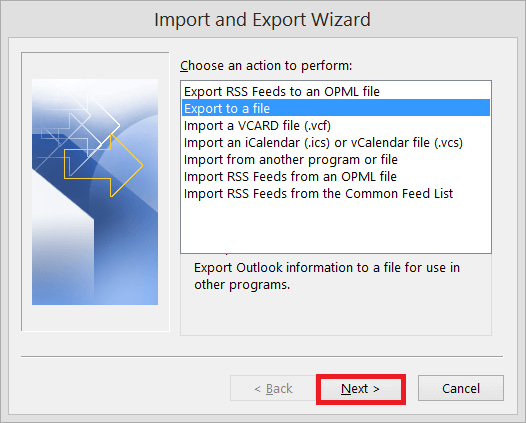
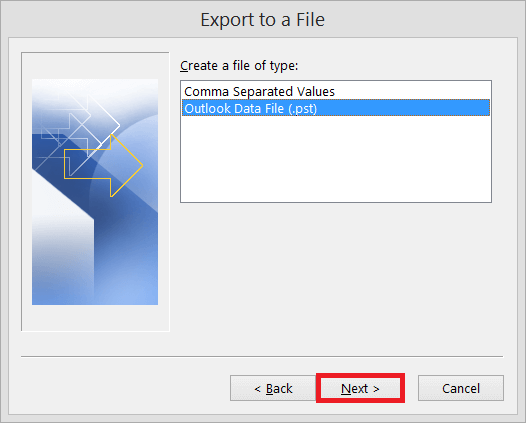
- Choose the Outlook Data File (.pst) option, after this press Next
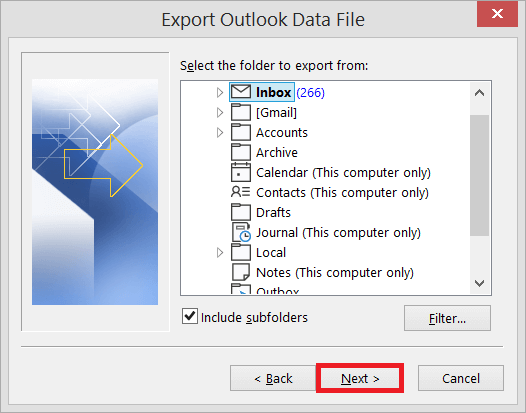
- Choose the targeted folder and sun-folders you need to export and click Next
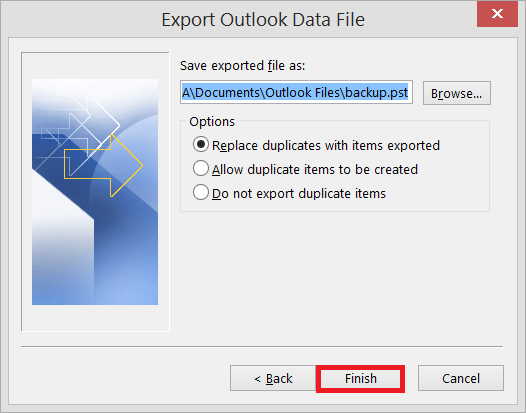
- Now go to the folder where you require to export the new PST files. Select ‘Replace duplicates with items exported’ option. After this click on ‘Finish’
Limitations of the Import/Export Wizard:
Some key limitations of the above method are discussed below:
–Can’t convert an orphaned OST
— No Support for severely corrupted OST file
— The wizard will not work in case of a broken Exchange Server connection
— If the OST is not properly synced, there is a risk of missing mailbox data
— May fail to export all items like contacts, calendar, and email metadata
— Time consuming method for large files
–Unable to convert a password-protected or encrypted OST
— May distort mailbox hierarchy and folder structure
Method 2: Convert an Orphaned OST Using Professional Tool: In the above section, we have learned that manual functionalities work in certain set scenarios. We have discussed their limitations. Manual methods will not work on an orphaned OST. In such a case, we need something extraordinary. The best and simplest way for such conversion is to utilize a specialized tool. Such software employs advanced algorithms. Tools like Stellar Converter for OST can work independently. It automatically detects OST, which saves productive time. This tool is smart enough to convert an orphaned OST. It can work without the Exchange server. This software is capable of converting even an oversized or encrypted Outlook data files (.ost). It also maintains the original data structure and hierarchy. This converter software is capable of extracting all mailbox folders.
Benefits of Using Stellar Converter for OST:
— Capable of working independently without Exchange Server
— Employs advanced algorithm to work without Outlook installation
–Can convert orphaned as well as an encrypted OST
— Converts all OST components (email messages, attachments, calendar, etc) with precision
— Friendly GUI
— Doesn’t disturb folder structure and hierarchy
— Offers a detailed preview of all mailbox items before conversion
Conclusion:
In the above guide titled “How to convert OST file to PST in Outlook 365,” we have explored why users may need to convert OST file to PST. We discussed events that lead to such conversion. We have learned in case of an active profile, we can perform such conversion using the Import/Export Wizard. But it will work if the Exchange is not available. We have learned the limitations of this method as well (time consuming, risk of data loss, inability to convert an orphaned OST, etc.). Experts strongly argue to employ some OST to PST converter software for data safety and security. Tools like Stellar Converter for OST are extremely reliable. They employ advanced algorithm. Such converter tools can easily restore an encrypted or orphaned OST. Their interface is easy for anyone to use. They also preserve the original folder hierarchy and structure.
