
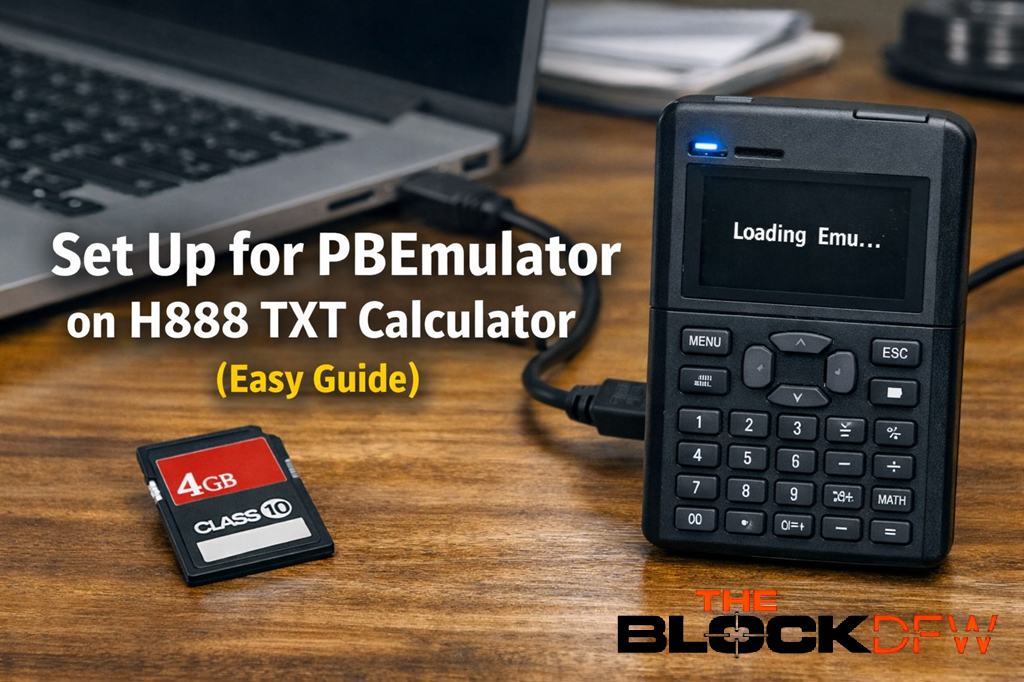
Set Up for PBEmulator on an H888 TXT calculator follows a precise and predictable process. It requires downloading the correct emulator version, formatting an SD card to FAT32, creating an exact folder structure, and installing the bootloader in the correct sequence. When each step is completed carefully, the device recognizes PBEmulator immediately and loads media without errors.
First, you install a device-specific build such as PBEmulator v1.4.2-H888 from the official source. Next, you format the SD card to FAT32, because unsupported formats prevent the calculator from booting. Then, you create required folders at the root level so the emulator can detect system files and media.
Finally, you transfer the emulator files to the device via USB, reboot the calculator, and apply basic display settings. Once the set up for PBEmulator is complete, the calculator functions as a stable multimedia and document environment for everyday study and file access.
What PBEmulator Is and How It Is Used
PBEmulator is a lightweight multimedia emulator designed for handheld devices, most commonly the H888 TXT calculator. It allows users to view images, play audio, watch supported video files, and organize study materials directly from an SD card.
Because PBEmulator interacts closely with the device firmware, it depends on strict rules for file structure and formatting. When those rules are followed, performance remains smooth and predictable. When they are ignored, startup failures or freezes can occur.
This guide explains not only how to set up PBEmulator, but also why each step matters.
What You Need Before Starting
Preparation prevents almost all setup problems. Before beginning the set up for PBEmulator, gather the following items.
Required Hardware
- H888 TXT calculator or compatible handheld device
- SD card, 4GB Class 10 recommended
- USB cable
- Computer with basic file access
Required Software
- PBEmulator v1.4.2-H888 from the official GitHub repository
Always extract the downloaded ZIP file fully before copying any files.
Step 1: Download the Correct PBEmulator Version
PBEmulator builds are device-specific. Therefore, choosing the correct version is essential.
Best practice
- Use v1.4.2-H888 unless a newer official release clearly states H888 compatibility
- Avoid third-party mirrors, which increase the risk of corrupted or modified files
This step ensures hardware compatibility and stable boot behavior.
Step 2: Format the SD Card to FAT32
SD card formatting directly affects whether PBEmulator loads.
Formatting requirements
- File system must be FAT32
- Do not use NTFS or exFAT
- A quick format is acceptable for healthy cards
This format allows the bootloader to read system files during startup.
Step 3: Create the Required Folder Structure
PBEmulator scans only specific folders, and spelling must match exactly.
Create the following directories in the root directory of the SD card:
/pblemulator/
/music/
/videos/
/photos/
Supported Media Formats
- Music:
.mp3,.wav - Videos:
.avi,.mkv - Photos:
.jpg,.png
.mov files are generally unsupported and may cause freezes.
Step 4: Install the Bootloader Correctly
This step links PBEmulator to the device firmware.
Installation steps
- Power off the calculator completely
- Insert the prepared SD card
- Connect the device to your computer via USB
- Hold the ON/OFF button until the LED blinks blue
- When the drive appears, usually labeled H888, copy all extracted emulator files directly onto it
- Safely eject the drive before unplugging
Safe ejection prevents silent file corruption.
Step 5: First Boot and System Verification
After installation, power on the device.
Expected result
- “Loading Emu…” screen
- PBEmulator main menu
If this screen does not appear, recheck SD card formatting and folder placement. Most issues originate there.
Step 6: Optimize Display for Readability
PBEmulator includes simple display controls that significantly improve usability.
Recommended settings
- Go to Settings > Display Mode
- Select Grayscale High Contrast
- Set Font Size to Small
These settings improve clarity and increase visible content density.
Step 7: File Naming Rules for Stability
File names directly affect emulator stability.
Safe naming rules
- Use letters, numbers, and underscores only
- Example:
MATH_Notes_01.png - Avoid spaces and special characters
Following these rules prevents freezes during file browsing.
Common Issues and Practical Fixes
Device does not boot
- SD card is not formatted to FAT32
- Emulator files copied into a subfolder
Media files do not appear
- Folder names misspelled
- Unsupported file formats used
System freezes
- Special characters in file names
- Unsupported video codecs
These issues are structural, not hardware-related.
Helpful Video Walkthrough
For users who prefer a visual reference, this tutorial demonstrates a similar installation workflow. While it focuses on a related emulator, the setup logic closely matches the set up for PBEmulator.
This video is especially helpful for understanding USB connection timing and file transfer behavior.
Final Checklist Before Daily Use
Confirm the following before regular use:
- SD card formatted to FAT32
- Correct PBEmulator version installed
- Required folders created at root level
- Media files use supported formats
- File names follow safe naming rules
Once confirmed, no further configuration is required.
Final Thoughts
The set up for PBEmulator is a precision task, not a complicated one. When each step is followed carefully, the emulator becomes a stable and dependable extension of the H888 TXT calculator.
With proper preparation and structure, PBEmulator delivers consistent performance and long-term reliability, making it well suited for everyday multimedia and study use.
Frequently Asked Questions (FAQs)
What is the correct set up for PBEmulator on H888 TXT calculators?
The correct set up for PBEmulator includes downloading the H888-specific version, formatting an SD card to FAT32, creating required folders, installing the bootloader, and rebooting the device.
Which SD card format works for the set up for PBEmulator?
FAT32 is required. Other formats such as NTFS or exFAT prevent PBEmulator from booting correctly.
Why does PBEmulator not detect my files?
This usually happens due to incorrect folder names, unsupported file formats, or special characters in file names.
Can PBEmulator play video files?
Yes. PBEmulator supports .avi and .mkv video files. .mov files are generally unsupported.
Is PBEmulator stable for daily use?
Yes. When the set up for PBEmulator is done correctly, it provides stable and consistent performance for everyday multimedia and study needs.
Ready to set it up the right way?
Explore more clear, practical guides like this on The Block DFW, where complex tech topics are explained simply, accurately, and without shortcuts.